
Fix the metadata in your Google Photos exports.
Put the real metadata (shot date, GPS and description) back inside the photos and videos exported by Google Takeout, reading them from the JSON files. Your originals are never touched.
sudo apt install ./google-photos-takeout-fixer*.deb
On macOS, on first launch: right-click the icon → Open (the app isn't signed with an Apple Developer account).
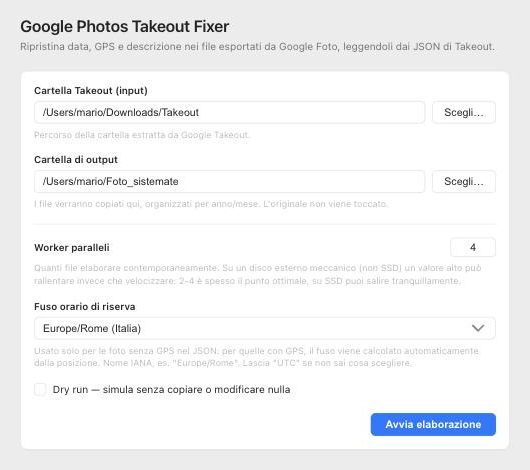
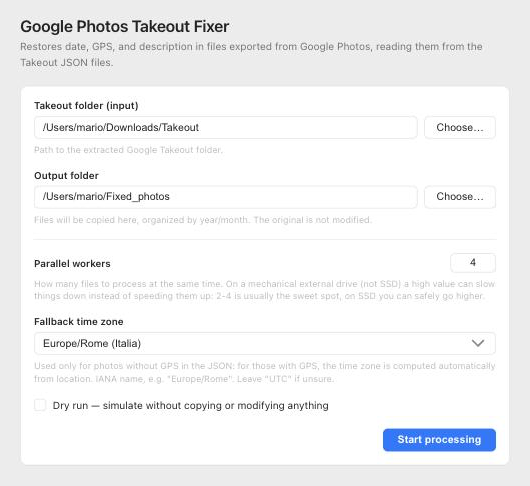
What is Google Photos Takeout Fixer?
When you download your photos with Google Takeout, the metadata (date, location and description) isn't inside the files. They live in a separate JSON next to each photo. Open them in Preview or Finder, or import them into a photo library, and you usually see the download date, not the shot date. Google Photos Takeout Fixer matches every photo or video to its JSON and writes the real data into the file with exiftool, works out the true time zone from GPS, drops the identical copies created by multi-album photos, and organizes everything by year and month. It runs locally on macOS 11+ and Debian 12, it's free and released under the MIT license.
Core features
Metadata in the file
Shot date, GPS and description written into photos and videos (EXIF for images, container metadata for videos), not left in a separate JSON.
Real time zone
Time is computed from GPS coordinates with an offline library, not a fake UTC. For photos without GPS you pick a fallback time zone.
Safe matching
Every file finds its JSON with exact rules: duplicate-name (1) files, “-edited” photos, Motion Photos, extension-less JSON. No guessing that swaps photos.
Split export? No problem
If Google split your export into Takeout, Takeout 2, … the app also looks for JSON across same-named folders: nothing to merge by hand.
Multi-album dedupe
A photo in several albums is exported several times. Identical copies (verified byte by byte with SHA-256) are reduced to one.
Original left intact
It works on a copy in the output folder, organized by year/month. Your original export stays as it is: you can always start over.
Full reports
After a run you get abbinamenti.csv (which JSON for each file), duplicati.csv and errors.log: nothing happens silently.
Cancel & free space
It checks available space before writing and lets you cancel any time, even during the scan. Use Dry run to simulate everything first.
How it works
Export and extract
On takeout.google.com select only Google Photos, download the archives and extract them all into a single folder.
Pick the folders
Choose the Takeout folder as input and an empty folder as output. Try Dry run first to see what would happen.
Run
Fixed photos appear in output/year/month, ready to import into your photo library.
SUPPORTED FORMATS
Supported formats
It also recognizes Pixel Motion Photos (MVIMG: photo + video sharing a name) and versions edited in the Google Photos app in several languages (“-edited”, “-modificata”, …), which reuse the original's JSON.
Free and open source (MIT). The code is on GitHub: inspect it, fork it, report an issue or contribute. No account, no telemetry, no network calls.
View the codeCHANGELOG
Recent releases
EXIF date for photos without a JSON
Photos without a JSON are placed in the year/month folder using the shot date already stored in the file, instead of the modified date. If there is no valid date they stay where they are, with no invented dates.
Tagged people in your files
People tagged in Google Photos are written into the files (XMP PersonInImage and Subject), so apps like Lightroom read them as keywords.
Live progress during deduplication
The slowest part of the scan now shows “Checking for duplicates: X/Y” and moves the progress bar, instead of looking frozen on slow external drives.
Cancel works during the scan too
The Cancel button now stops the scan and the deduplication hashing right away, not only the per-file processing.
FAQ
Frequently asked questions
Is it free?
Yes, completely. It's an open-source project under the MIT license: use it, modify it and redistribute it freely. No accounts, subscriptions or ads.
Why don't my Takeout photos have the right date?
Google Takeout doesn't write date, GPS and description inside the photos: it puts them in a separate .json file next to each one. This app reads that JSON and writes the data into the real file, so Preview, Finder and photo libraries show it correctly.
Does it touch my original files?
No: it copies files to the output folder, organized by year/month, and writes the metadata on the copy. Still, keep your original Takeout export until you're happy with the result.
My export is split into several folders (Takeout, Takeout 2, …): do I have to merge them?
No. Extract them all into one folder and point the app there. If Google separated a photo from its JSON by putting them in different parts, the app finds it by searching across folders with the same album name.
Are the Takeout photos the originals I uploaded?
It depends on the quality you chose in Google Photos. With Original quality the file is identical to what you uploaded. With Storage saver (formerly “High quality”) Google recompresses photos above 16 megapixels and videos above 1080p: the exported file is a recompressed version, not the original.
Why are some files reported as “duplicates”?
If a photo belongs to several Google Photos albums, Takeout exports one copy per album. The app recognizes them (same name and size, then an identical SHA-256 hash), keeps one and lists the discarded ones in duplicati.csv. Photos with the same name but different content are both kept.
Is my data sent online?
No. Everything runs locally: exiftool is bundled, the time zone is computed with an offline library, and the small internal server only answers on 127.0.0.1. No telemetry, no network calls.
How do I install it?
macOS 11+: download the .dmg, drag the app to Applications and, on first launch, right-click → Open (the app is unsigned). Debian 12 and derivatives: download the .deb from the releases page and install it with sudo apt install ./file-name.deb. Details and troubleshooting in the README.